
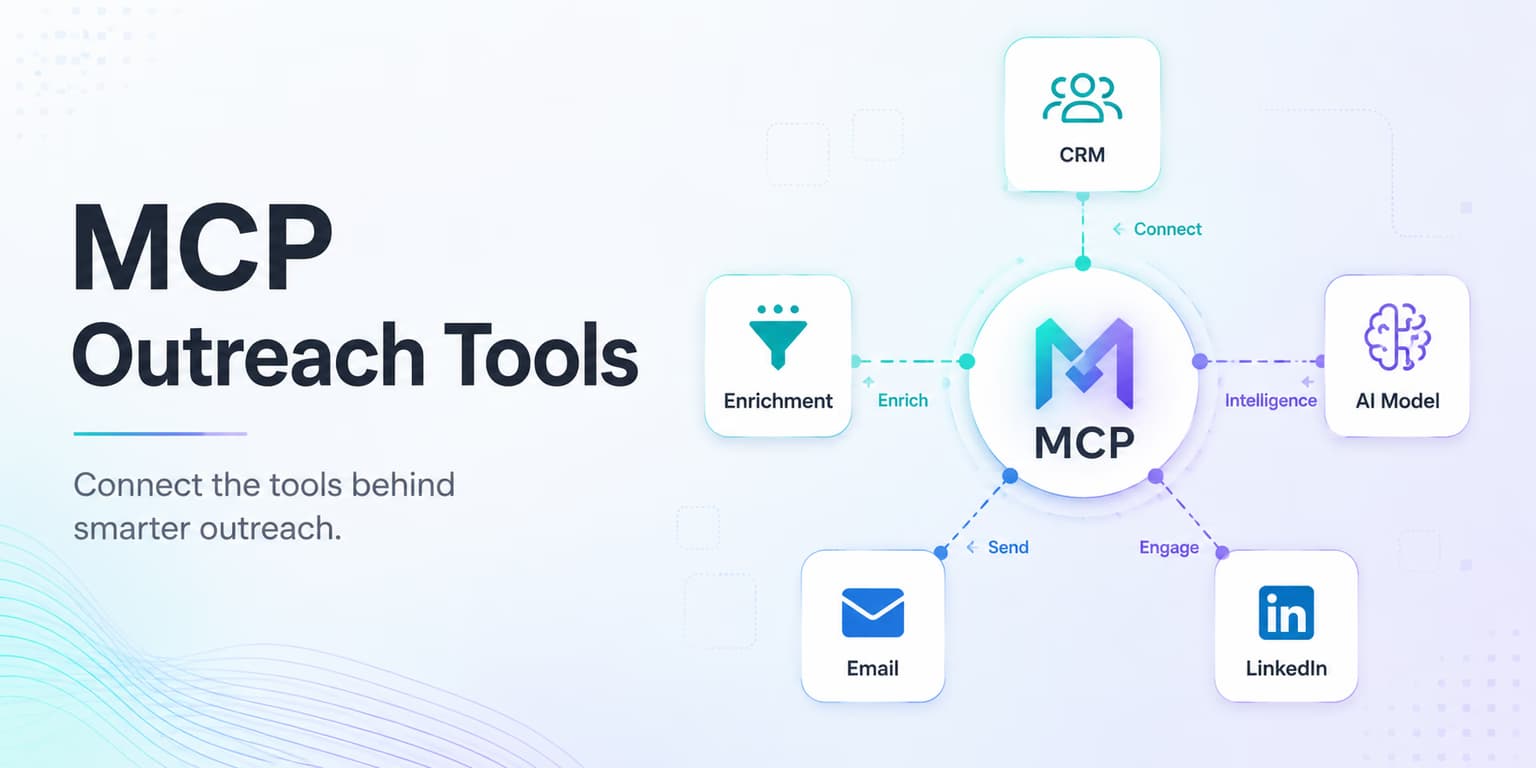
Building custom integrations for AI agents is a major challenge for modern sales engineering teams. Every time you connect a model to a new tool, you must write API endpoints, document JSON schemas, and program custom logic. This manual setup is slow and makes it difficult to upgrade to new models.
The solution to this integration bottleneck is the Model Context Protocol (MCP). MCP is an open-source standard that defines how client applications connect to server tools. Instead of writing custom code, servers provide machine-readable schemas, allowing agents to discover and run tools automatically.
Omentir adopts this standard with a hosted MCP server. Connecting an AI agent gives it a focused, workspace-scoped surface for product context, lead-finder configuration, scored-lead retrieval, discovery activity, and existing reply conversations. Here is how to configure your MCP clients.
The important distinction is that MCP is not another automation shortcut. It is a clean contract between the agent and the sales system. The agent can see which tools exist, what each tool expects, and what the tool returned. That structure matters because outreach work has real consequences: the wrong lead group, the wrong campaign state, or the wrong reply can affect an actual prospect conversation.
For teams that prefer standard REST integrations, the platform also provides full OpenAPI-compliant endpoints under /api/agent/v1. The native MCP server is still the cleaner path for most developer environments, as detailed in our guide to Omentir's agent features.
The Omentir hosted MCP server architecture
The Omentir MCP server runs as a hosted endpoint. Unlike local MCP servers that require Node.js or Python packages on your computer, the hosted server manages credentials and API pathways in the cloud.
This hosted design makes configuration simple. You do not need to run terminal scripts or install external packages. You simply point your local client (like Cursor or Claude CLI) to the Omentir MCP URL and pass your workspace-scoped token as authorization.
In practice, the hosted server sits between your agent client and your Omentir workspace. The client asks for available tools, the server returns tool schemas, and the agent chooses a tool call with structured arguments. Omentir then applies the same workspace checks, campaign rules, and pacing safeguards used by the rest of the product.
This is especially useful for sales teams that want an AI assistant to help with operations without handing it unrestricted access. A founder can ask an agent to configure a lead finder, rank scored prospects, retrieve an exact lead, review existing conversations, or summarize discovery activity. Billing and account credentials stay outside the tool surface.
The MCP Endpoint URL
https://omentir.com/api/agent/v1/mcp
Step-by-step client setup for Cursor, Claude, and ChatGPT
Setting up your client takes only a few minutes. The exact screen names can change as agent products evolve, but every setup needs the Omentir MCP endpoint and a Streamable HTTP client. Chat apps complete OAuth after you add the URL; header-capable clients can use a workspace token instead.
If your client supports OAuth, add the connector URL and complete the Omentir sign-in and approval flow. Otherwise create a fresh token for this use case rather than reusing an old one. Name it after the client, such as "Claude desktop prospecting" or "Cursor lead research." That makes later cleanup simple. If you stop using a client, revoke that token without affecting other agent workflows.
Integrating with the Cursor IDE agent
To connect Cursor to Omentir, open your settings panel and navigate to the MCP server settings. Add a new server and enter the following settings:
- Name: omentir
- Type: Streamable HTTP
- URL: https://omentir.com/api/agent/v1/mcp
- Header: Authorization: Bearer [your_omentir_agent_token]
Once added, Cursor will discover Omentir's tools automatically, allowing you to configure lead finders, inspect discovery, and review existing conversations directly from your editor.
A good first prompt is deliberately boring: "Call omentir_get_context and summarize whether the workspace is ready for automation." If the agent can read workspace context, authentication is working. If it cannot, fix the token or client transport before asking it to create anything.
Integrating with the Claude Code CLI
To connect Claude Code, add Omentir as an HTTP MCP server using your client configuration or command-line setup. A JSON client configuration usually follows this shape:
{
  "mcpServers": {
    "omentir": {
      "url": "https://omentir.com/api/agent/v1/mcp",
      "headers": {
        "Authorization": "Bearer <your_omentir_agent_token>"
      }
    }
  }
}
Save the file and restart your CLI session to verify the connection.
Clients that do not support custom authorization headers can use the OAuth flow instead. Never place an agent token in the endpoint URL, shared docs, screenshots, or public issue trackers.
The Omentir MCP tool catalog
The Omentir MCP server provides 19 tools for lead discovery, workspace control, and existing conversations. These tools are grouped into five functional categories:
- Context & Profile: Tools like
omentir_get_contextandomentir_get_product_profilethat read your target buyer parameters and feature details. - Lead Discovery: Tools like
omentir_create_agentandomentir_list_leadsthat search LinkedIn daily and score fit profiles. - Lead inspection:
omentir_get_leadretrieves one exact workspace-owned lead with qualification context. - Lifecycle Management: Tools to edit, pause, resume, or remove discovery agents, and to tune outreach settings like daily sending limits.
- Replies: Tools like
omentir_list_conversationsandomentir_reply_to_leadthat inspect existing conversations and send an approved reply.
Think of these categories as a workflow, not a menu. A sensible agent run begins with context, checks the product profile and existing lead finders, then decides whether to create a finder. The public MCP surface does not create or manage campaigns.
A strong operator prompt might be: "Read the workspace context and product profile. List active lead groups. If there is no group for early-stage SaaS founders selling to sales teams, propose a draft discovery agent and explain the targeting assumptions before creating it." That prompt keeps the agent anchored to evidence and asks for assumptions before action.
For a lead-discovery workflow from brief through outreach handoff, read our guide to MCP LinkedIn lead discovery.
Workspace security and token authorization boundaries
Security matters when you delegate tasks to AI agents. Omentir protects your workspace by enforcing strict authorization boundaries on all agent tokens.
Each token is scoped to a single workspace. It cannot edit billing details, view other accounts, or access your raw LinkedIn credentials. You can revoke tokens anytime on the API page, disabling access immediately.
You should still treat agent access as production access. Use one token per client, rotate tokens when a teammate leaves, and keep the token out of prompts that might be saved in transcripts. If you are testing a new agent, begin with read-heavy tasks such as context checks, lead searches, exact-lead retrieval, and activity review before allowing it to change discovery agents or settings.
The safest pattern is to separate planning from execution. Ask the agent to inspect context and propose changes first. Then ask it to apply the change only after you have reviewed the plan. This keeps the workflow fast while still preventing a model from quietly acting on a bad assumption.
This security structure allows you to connect external agents without risking account safety. For integration blueprints, read our guide on integrating autonomous sales agents.
Pacing campaign deliveries to maintain account health
MCP tools make it easy to ask an assistant to "create the agent and start outreach." That sentence is where accounts get hurt. The model will happily call create, then update, then create again if you did not tell it to list existing agents first.
Before any send-side tool runs, have the assistant read remaining daily allowance and existing agents. If a finder already covers the ICP, reuse it. If you want more volume, say so in a later message. Tool access is not the same as a raised cap.
MCP does not change that philosophy. An agent can configure and inspect lead discovery, but it should not turn LinkedIn into a bulk sender. The best use of agent tooling is to improve lead fit, inspect planned sends, and handle existing conversations while keeping delivery paced by Omentir.
Before trusting a shortlist, confirm the workspace has a connected LinkedIn account, the discovery agent is active, its targeting is intentional, and recent activity shows a completed run. If the first lead list is empty, inspect activity rather than claiming discovery is complete.
SOP: the MCP client setup and audit checklist
Follow this simple SOP to configure and audit your client setups:
- Choose authentication: Use the connector URL and OAuth in chat apps, or mint a workspace token on the API page for a header-capable client.
- Select transport: Use Streamable HTTP for the MCP endpoint.
- Check Connection: Run a basic context tool call (e.g.,
omentir_get_context) to verify authentication. - Review Limits: Check daily safety boundaries before changing discovery or outreach settings.
- Monitor Logs: Check Omentir logs to confirm that outgoing messages are sent using natural pacing.
Add two checks for real-world usage. First, ask the agent to explain what it is about to do before it creates or resumes a lead finder. Second, keep a short changelog of agent changes: who prompted them, what target segment was chosen, and which finder settings changed. That record makes later debugging much easier.
If a tool call fails, do not immediately retry with random parameters. Read the structured error, identify whether the problem is authentication, missing workspace setup, invalid tool arguments, or campaign readiness, and then make the smallest correction. Good MCP usage feels like operating software with a careful assistant, not like repeatedly asking a chatbot to guess.
Give AI agents usable context
Connecting your AI agent to a hosted MCP server makes lead-discovery operations accessible from a chatbot while keeping access scoped and auditable. Document tools, secure tokens, and you can run a GTM workflow that stays inspectable.
Use Omentir to power your integration. Connect your client via MCP, configure a precise finder, review scored leads, and retrieve exact context before deciding the next step.
The teams that get the most from MCP will not be the ones that automate the most actions. They will be the ones that give agents clean context, narrow permissions, and explicit review points. That is how you get the benefit of AI without losing control of the sales motion.
Frequently asked questions
A hosted Model Context Protocol (MCP) server provides machine-readable tool schemas over standard protocols. This allows AI agents to discover, run, and evaluate tools dynamically without custom code integrations.
Two ways. Chat apps such as Claude, ChatGPT and Grok take only the connector URL: they register themselves, send you to Omentir to sign in and approve, and receive a token automatically. Clients that let you set headers can instead use a key from the API page as an Authorization Bearer header.
Yes. Give it the connector URL on its own and it will run the OAuth sign-in flow instead, so no token is ever pasted or placed in a URL.
The MCP server returns structured error details, allowing the agent to adjust parameters (like changing a lead group or editing a message) and run the action again.